




Close Menu
West TimelinesWest Timelines
  • News
  • Politics
  • World
    • Africa
    • Asia
    • Australia
    • Europe
      • United Kingdom
      • Germany
      • France
      • Italy
      • Russia
      • Spain
      • Turkey
      • Ukraine
    • North America
      • United States
      • Canada
    • South America
  • Business
    • Finance
    • Markets
    • Investing
    • Small Business
    • Crypto
  • Elections
  • Entertainment
  • Health
  • Lifestyle
    • Fashion
    • Food & Drink
    • Travel
    • Astrology
  • Weird News
  • Science
  • Sports
    • Soccer
  • Technology
  • Viral Trends
Trending Now

Dubai Spotlight: Analyzing the Evolving Audience Tastes with AI Social Listening Tools in the UAE

4 weeks ago

مرآة التاريخ: تحليل البناء السردي للدروس الخالدة في قصص الأنبياء والإسلام

4 weeks ago

السندات الحكومية والشركات: أساسيات الاستثمار الآمن والدخل الثابت

1 month ago

UAE Ranks Among Top Rugby Markets on TOD as British & Irish Lions Tour Kicks Off

5 months ago

Darven: A New Leap in AI-Powered Legal Technology Launching from the UAE to the World

6 months ago
Facebook X (Twitter) Instagram
West TimelinesWest Timelines
  • News
  • US
  • #Elections
  • World
    • North America
      • United States
      • Canada
    • Europe
      • United Kingdom
      • Germany
      • France
      • Italy
      • Spain
      • Ukraine
      • Russia
      • Turkey
    • Asia
    • Australia
    • Africa
    • South America
  • Politics
  • Business
    • Finance
    • Investing
    • Markets
    • Small Business
    • Crypto
  • Lifestyle
    • Astrology
    • Fashion
    • Food & Drink
    • Travel
  • Health
  • Sports
    • Soccer
  • More
    • Entertainment
    • Technology
    • Science
    • Viral Trends
    • Weird News
Subscribe
  • Israel War
  • Ukraine War
  • United Kingdom
  • Canada
  • Germany
  • France
  • Italy
  • Russia
  • Spain
  • Turkey
  • Ukraine
West TimelinesWest Timelines
Home»Technology
Technology

Disabling Ads in Windows 11’s Start Menu: A Step-by-Step Guide

April 25, 2024No Comments3 Mins Read
Facebook Twitter Pinterest LinkedIn Telegram Email WhatsApp Copy Link

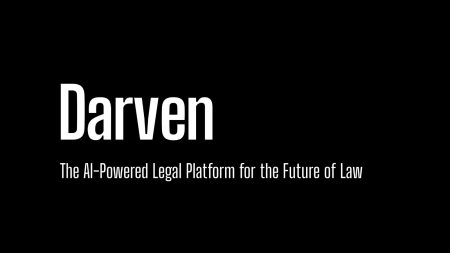
Microsoft is rolling out an update to Windows 11 that includes ads in the Start menu. These ads will feature Microsoft Store apps from a curated selection of developers and will appear in the Recommended section of the Start menu. Users will be redirected to the Microsoft Store to download the app when they click on an ad. Additionally, frequently used apps installed on the user’s machine will also appear in the Recommended section alongside the ads.

The update, which is optional for now, also includes fixes and improvements such as resolving pixelation or fuzziness of widget icons on the taskbar and enhancements to lock screen widgets. Minor bug fixes include addressing issues with keyboard layouts and freezing problems with the Settings app. While some users have reported seeing ads after installing the update, it is likely that Microsoft will enable advertising for a majority of users once the update reaches more machines.

Advertising in Windows is not new, as the operating system has previously featured ads in various parts of the interface. The Start menu in Windows 10 also had promotions for apps displayed as tiles that users could manually remove. It is surprising that Microsoft took this long to introduce ads to the Windows 11 Start menu given its history of integrating advertising in different aspects of the OS. The update with Start menu ads, identified as KB5036980, is available as an optional update in Windows Update and will be automatically installed for users within the next few weeks.

The Recommended section of the Start menu will display app recommendations in the form of ads. Users may see an app with an app icon and a tagline, and clicking on the ad will lead them to the Microsoft Store to download the app. There are various designs for the ads, including one that includes a “Sponsored” label next to the tagline. Users can dismiss the ad or recommendation by right-clicking on it, although this feature has not been tested extensively. Microsoft has provided a way to turn off Start menu ads in the Windows 11 Settings, allowing users to disable the display of recommendations for tips, shortcuts, new apps, and more.

Users can also disable the sharing of their advertising ID with third parties to prevent personalized ads from appearing. During the Windows setup process, users can opt out of sharing their advertising ID, which would prevent Microsoft from sharing personal information with advertisers. By turning off this setting, users can ensure that any ads they see will not be tailored to their preferences. Additionally, Microsoft has included a setting within Windows Settings to turn off Start menu ads, giving users control over the ads displayed on their systems.

Follow on Google News Follow on Flipboard
Share. Facebook Twitter Pinterest Email Telegram WhatsApp Copy Link

You Might Like

Dubai Spotlight: Analyzing the Evolving Audience Tastes with AI Social Listening Tools in the UAE

Darven: A New Leap in AI-Powered Legal Technology Launching from the UAE to the World

Array

Array

Array

Array

Editors Picks

مرآة التاريخ: تحليل البناء السردي للدروس الخالدة في قصص الأنبياء والإسلام

4 weeks ago

السندات الحكومية والشركات: أساسيات الاستثمار الآمن والدخل الثابت

1 month ago

UAE Ranks Among Top Rugby Markets on TOD as British & Irish Lions Tour Kicks Off

5 months ago

Darven: A New Leap in AI-Powered Legal Technology Launching from the UAE to the World

6 months ago

Jordan to Host Iraq in the Final Round of the Asian World Cup Qualifiers After Securing Historic Spot

6 months ago

Latest News

فلسطين: قلبٌ ينبض بالصمود والأمل

7 months ago

Roland Garros 2025: A New Era of Viewing, A Tribute to Legends, and Moments to Remember

7 months ago

Array

7 months ago
Advertisement
Facebook X (Twitter) TikTok Instagram Threads
© 2025 West Timelines. All Rights Reserved. Developed By: Sawah Solutions
  • Privacy Policy
  • Terms
  • Contact

Type above and press Enter to search. Press Esc to cancel.